If your files are not syncing to OneDrive, or you're seeing a stuck sync icon, red X, or "processing changes" message that never resolves, the fastest fix is often a very simple one: pause and resuming sync on your OneDrive. This guide walks you through how to do that step by step.
OneDrive runs in the background on Windows, and the status icon commonly lives in the system tray at the bottom right of your screen. It is right next to the system clock and date.
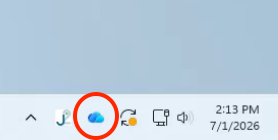
1. Look at the taskbar and check the icons near the system clock and date.
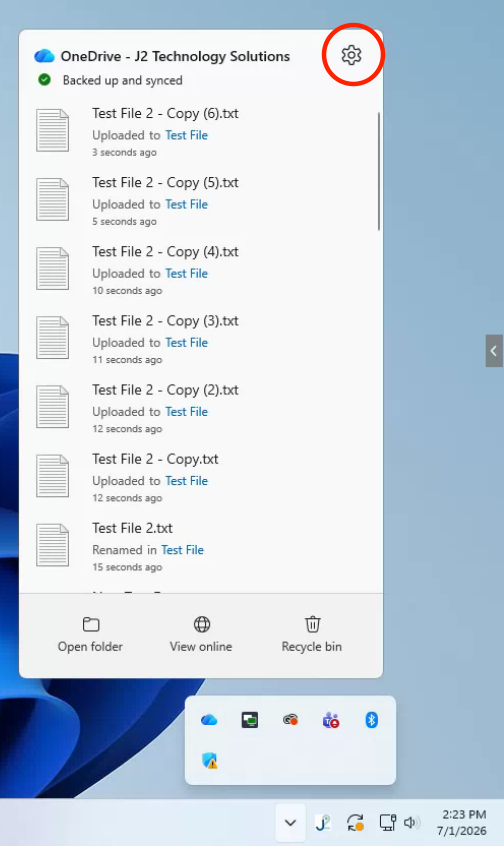
2. You should see the OneDrive icon as seen in the screen shot below.
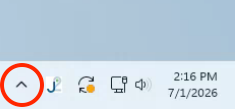
3. If you do not see the OneDrive icon then you may need to click the small up arrow (^) as seen in the screenshot below.
4. Once you press the small up arrow, the hidden icons will expand and you should see the OneDrive icon in the expanded system tray.
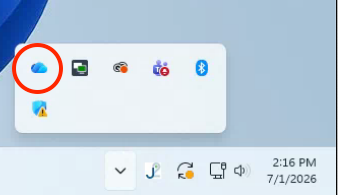
5. Please click on the OneDrive icon. Doing so will expand the OneDrive menu.
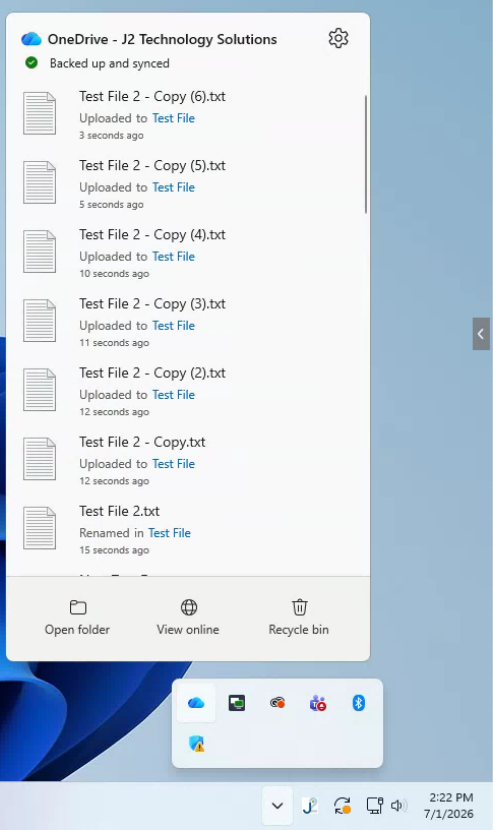
6. Now you can click on the Settings icon in the top right corner of the OneDrive menu. It's the circled gear icon as seen in the screenshot below.
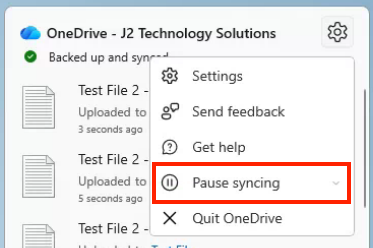
7. After clicking the Settings icon, please press the option labeled "Pause syncing".
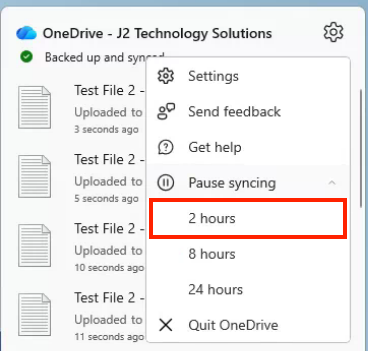
8. The "Pause syncing" option will expand and show the following options below. Please click the menu option labeled "2 hours".
9. After pressing the menu option labeled "2 hours", you will see this notice at the top of the OneDrive menu.
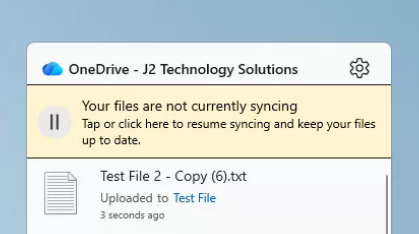
10. Your OneDrive syncing is now paused. Pausing sync temporarily stops OneDrive from uploading or downloading changes. This can help clear up conflicts, stuck files, or processes that have gotten hung up. Pressing the Settings icon in the top right corner of the OneDrive menu will show you the following options. Please press the option that says "Resume syncing".
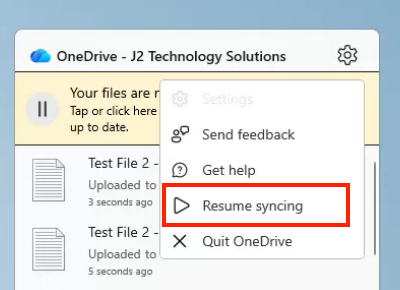
Your OneDrive is now syncing again, and can be confirmed with seeing the green check mark below and a message that reads "Backed up and synced".

Was this article helpful?
That’s Great!
Thank you for your feedback
Sorry! We couldn't be helpful
Thank you for your feedback
Feedback sent
We appreciate your effort and will try to fix the article